How a browser works: a beginner-friendly guide to browser internals
Have you ever wondered what happens in that split second after you type google.com and hit Enter? To most of us, the browser feels like a magic window. You type a name, and a world of images, text, and buttons instantly appears.
But under the hood, your browser is less like a window and more like a high-speed assembly line. It is one of the most sophisticated pieces of software on your computer, acting as a translator that turns raw code into something humans can actually understand.
What is a Browser
At its core, a browser is a resource fetcher and a renderer. Its job is to go out onto the internet, find the files that make up a website (HTML, CSS, and JavaScript), and "paint" them onto your screen.
While we often think of the browser as just the window where the website lives, it’s actually a collection of specialized parts working in harmony.

The Main Components
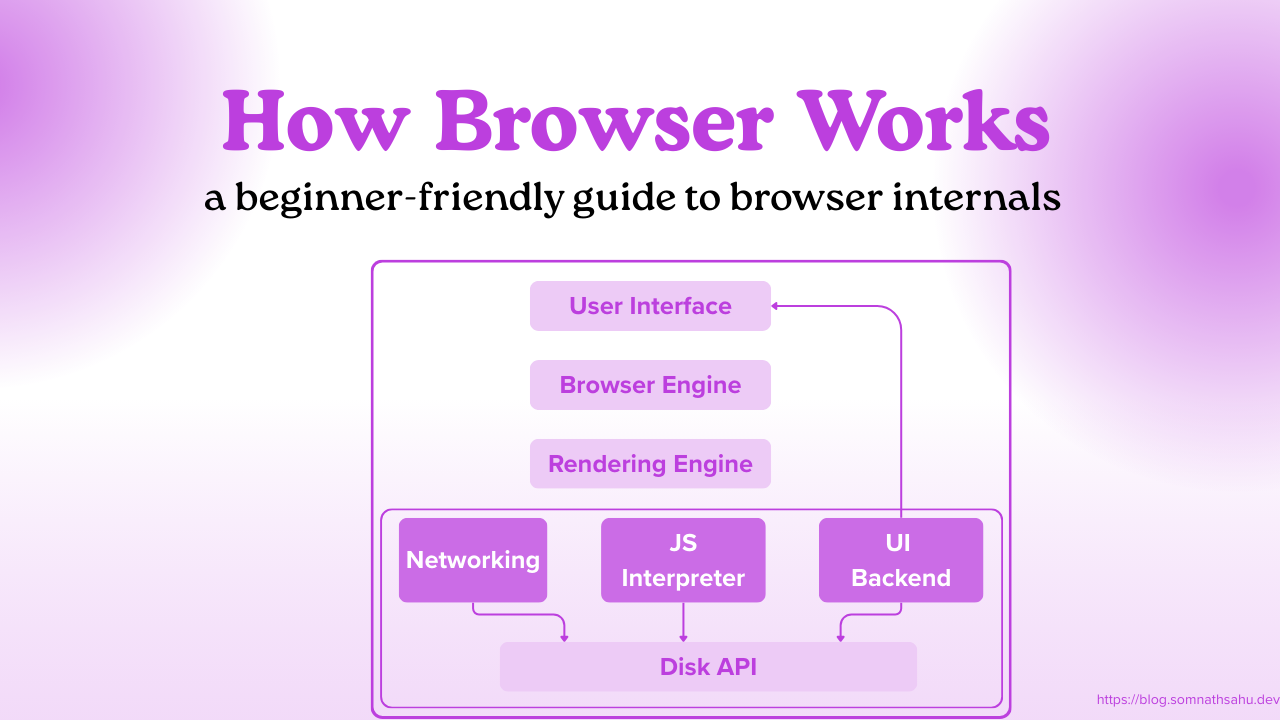
The User Interface (UI): This is everything you see that isn't the website itself—the address bar, the back button, the bookmarks menu, and the tabs.
The Browser Engine: Think of this as the "manager." It coordinates actions between the UI and the Rendering Engine.
The Rendering Engine: This is the heart of the browser. It’s responsible for displaying the content. If you use Chrome, this is Blink; if you use Safari, it's WebKit; and for Firefox, it's Gecko.
Step 1: Networking (The Fetch)
Before the browser can show you anything, it needs the data. The Networking component handles this. It uses the rules we discussed previously (TCP/IP and HTTP) to talk to a server and ask for the files. It starts by grabbing the HTML file, which is the blueprint of the page.

Step 2: Parsing
Once the browser has the HTML, it has to "parse" it. Parsing is just a fancy word for breaking something down into a structure the computer understands.
Imagine I give you the sentence: "The cat sat on the mat." To understand it, your brain "parses" it into a Subject (The cat), a Verb (sat), and a Location (on the mat).
Browsers do the same with code. If it sees 1 + 2 * 3, it doesn't just read left-to-right; it parses it into a tree: it knows it must multiply 2 * 3 first, then add 1.

Building the DOM Tree
As the browser reads your HTML, it builds the DOM (Document Object Model). Think of the DOM as a family tree for your website. The <html> tag is the grandparent, the <body> is the parent, and <h1> or <p> tags are the children.
Step 3: Handling the Style (CSSOM)
While the HTML tree is being built, the browser encounters CSS files. It doesn't just slap the styles onto the HTML. Instead, it creates a second tree called the CSSOM (CSS Object Model).
If the DOM is the "skeleton" of the site, the CSSOM is the "style guide" that tells the browser which bones should be blue, which should be hidden, and which should be 20 pixels wide.
Step 4: The Render Tree (The Blueprint)
Now, the browser combines the DOM and the CSSOM into the Render Tree.
This is a critical step because the Render Tree only contains things that will actually be visible on the screen. If a piece of code says display: none, it exists in the DOM, but the Render Tree ignores it. It’s the final blueprint used to build the visual page.
Step 5: Layout and Painting (The Finale)
We have a blueprint, but we don't have pixels yet. The browser finishes with two final, heavy-lifting stages:
Layout (or Reflow): The browser calculates exactly where every element goes. It figures out that the "Submit" button should be 50 pixels from the top and 20 pixels wide. It’s like a construction crew marking the ground with chalk before they start building.
Painting: Finally, the browser fills in the pixels. It draws the text, colors the buttons, and places the images. This happens incredibly fast, often in milliseconds.

Summary: From URL to Pixels
The journey from typing a URL to seeing a webpage is an incredible relay race:
Networking grabs the files.
Parsing turns HTML into the DOM (the skeleton).
Parsing turns CSS into the CSSOM (the style).
The Render Tree combines them.
Layout finds the coordinates.
Painting puts the color on your screen.
It’s a lot to take in, but remember: you don't need to memorize every gear in the machine to appreciate the engine. The browser is simply a master translator, turning code into the digital world we live in.